
Matchday Operations: Score Entry & Submitter Flags
This SOP explains how to locate a match, enter and submit a score, and verify or dispute an opponent-submitted score. The process ensures both teams confirm the result before the game is finalized and posted publicly.
1. How To Unlock The Portal Using Email + PIN
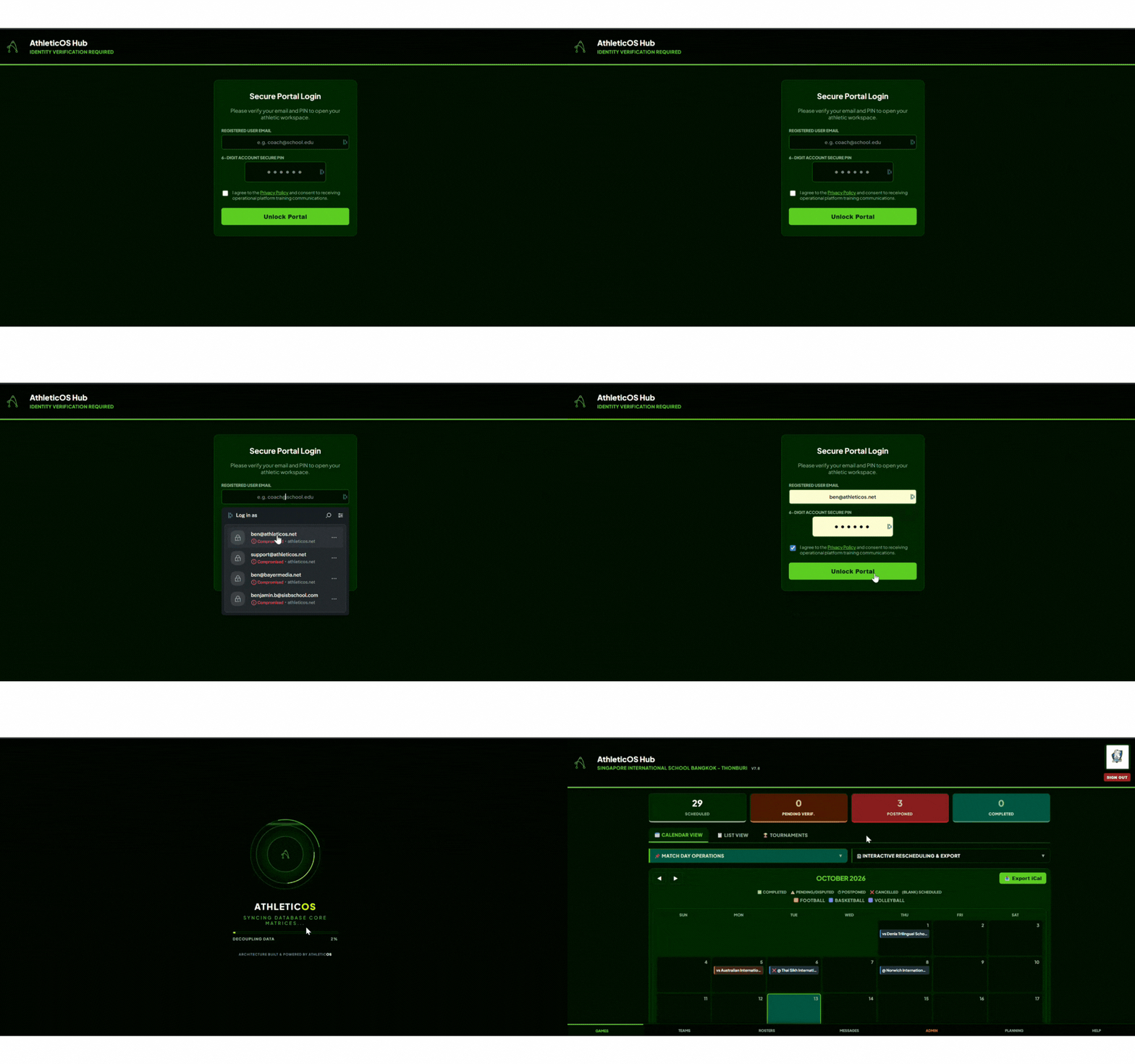
- Access School URL: Open your browser and navigate to your school-specific portal URL provided in your welcome email (e.g.,
https://bisal.athleticos.net/portal/?school=your-school-ID). - Enter Credentials: Type in the email address registered with the league and your designated 6-digit PIN.
- Terms & Unlock: Check the privacy policy box and click the Unlock Portal button.
- Support Contact: If you do not have your PIN or login email, contact Tony or
support@athleticos.netwith your full name and school name to request a credential reset.
2. Locating A Match On The Games Tab
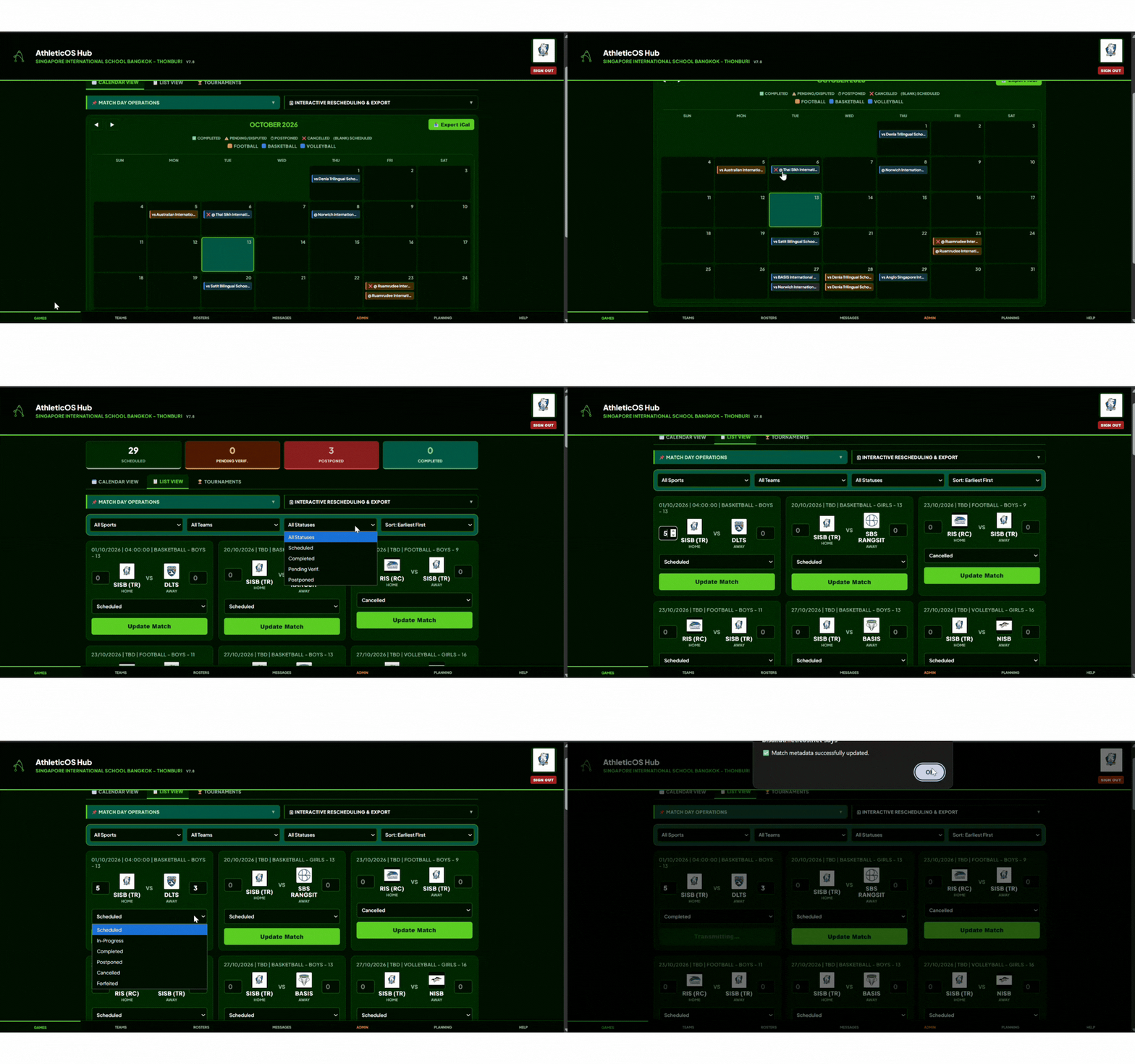
Default View: Upon unlocking the portal, navigate to the Games tab (this is your default home view).
- Method A (Calendar View): Click on Calendar View to see monthly scheduled fixtures. Locate your match on the calendar grid and click on the game card to open the scorecard modal.
- Method B (List View): Click on List View to view match cards. Use the top dropdown filters to sort or narrow down by Sport, Registered Teams, Status (e.g., Scheduled), or Date.
3. Entering & Submitting Final Scores
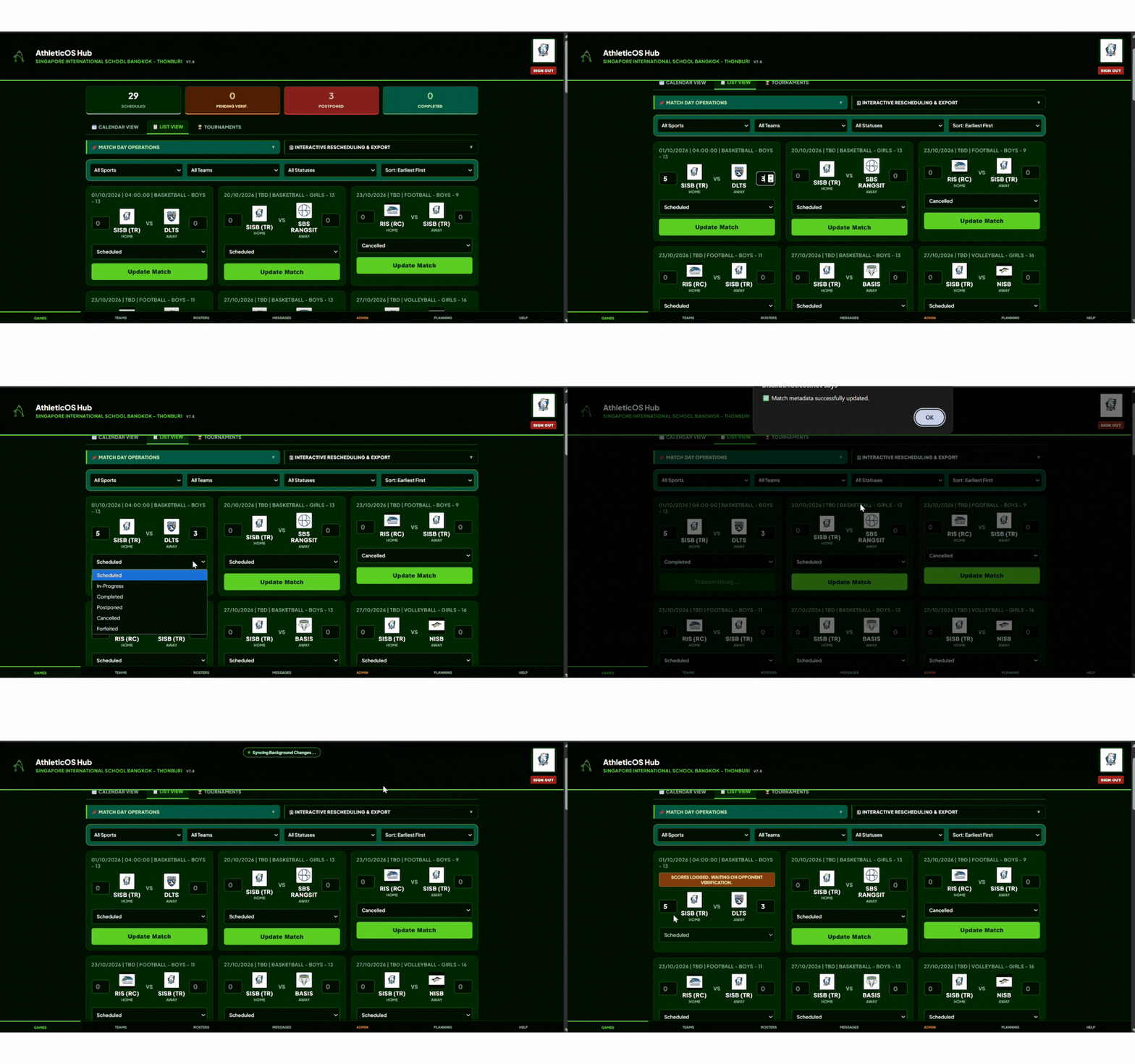
- Open Match Record: On the desired match card, click the green Update Match button to open the score inputs.
- Input Scores: Enter the exact final points/goals scored for both the Home and Away teams.
- Change Status: Toggle the game status dropdown from Scheduled to Completed.
Match Status Dropdown Definitions
When updating a match, changing the status dropdown dictates what actions you can take and how the system processes the game:
- Scheduled: The default status. The match is confirmed for its original date and time. No action is required from coaches until the match concludes.
- In-Progress: The match is currently underway. What it does: Signals to the league and opposing teams that the event has started but final scores are not yet ready to be submitted.
- Completed: The match has been played and finished. What it does: Selecting this confirms the match is over, requires you to input the final scores, and triggers the automated verification alert to the opposing coach.
- Postponed: The match cannot be played on its original date but will be made up later. What it does: Selecting this instantly unlocks the Interactive Re-scheduler.
- Cancelled: The match is permanently called off and will not be rescheduled. What it does: Removes the match from active requirements and alerts league administrators, without requiring a final score.
- Forfeited: A team has conceded the match. What it does: Automatically assigns a completed status with a default win/loss result based on league rules, bypassing the verification loop.
4. Updating Match Dates & Times (Interactive Re-scheduler)
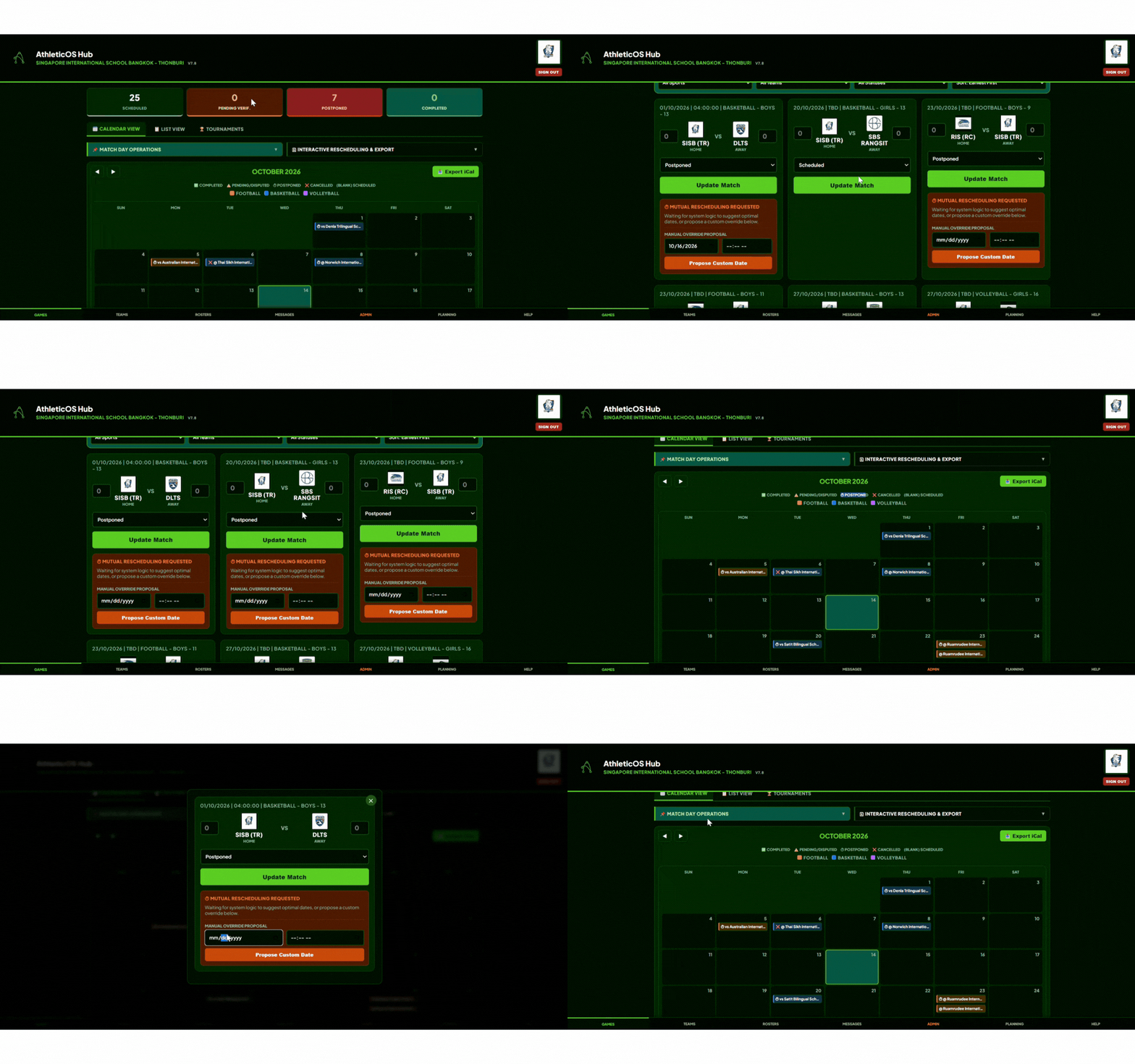
If a match date or time has changed, you must update it here so the master calendar remains accurate.
- Change the match status dropdown to Postponed. The score boxes will disappear and the Interactive Re-scheduler will unlock.
- Select the new agreed-upon Match Date from the calendar popup. Or drag-and-drop the event in Calendar view to an open date.
- Select the new agreed-upon Start Time.
- Submit: Click Update to save the submission, then click OK on the browser confirmation prompt.
Undoing a Status Change: If you accidentally mark a match as Postponed, Cancelled, or In-Progress, you can easily undo it. Simply open the Update Match window, change the status dropdown back to Scheduled, and click Update.
5. 🏟️ Managing Your Home Fixtures (Host ADs & Coaches)
As a host school, you have administrative control over the games played at your campus directly through the Coaches Portal.
Assigning Facilities
You no longer need to type out where a game is being played.
- Click the Edit button (pencil icon) on any of your Scheduled Home fixtures.
- Use the Venue Dropdown to select the specific court or pitch (e.g., "Main Sports Hall", "Pitch 1").
- Note: This dropdown is securely pre-filtered to only show your school's registered facilities.
Time Changes vs. Postponements
The portal uses smart-status logic to prevent accidental league-wide postponement alerts.
- Same-Day Time Changes: If you are simply adjusting the kickoff time on the same scheduled day (e.g., moving from 3:30 PM to 4:00 PM due to traffic), simply update the time in the edit modal and click Save. The match status will safely remain Scheduled.
- Postponements: If a game must be moved to a completely different calendar day due to weather or emergencies, change the Date in the modal. The system will automatically update the Match Status to Postponed to alert the league and the opposing team.
6. Submitter Flag & Pending Lock
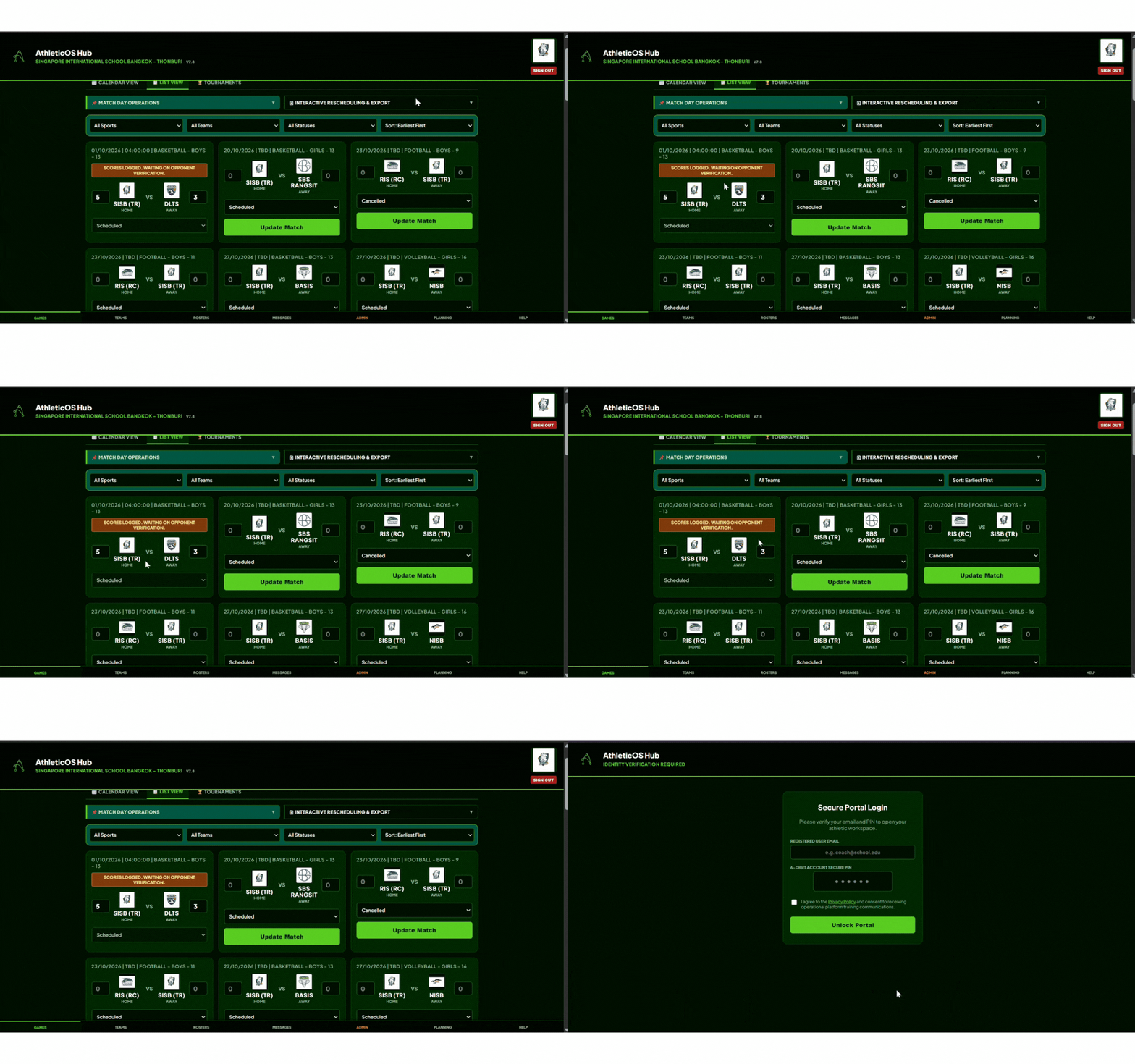
- Automated Lockout: Once submitted, the scorecard instantly locks to prevent accidental edits or double-entries by the submitting coach.
- Status Banner: An orange/brown banner reading
SCORES LOGGED. WAITING ON OPPONENT VERIFICATIONwill display across the match card. - Public Web Safeguard: The score remains held in a Pending Verification state and will not update public standings or website feeds until the opposing team completes verification.
7. Opponent Score Verification & Disputes
How Opposing Coaches View Logged Scores
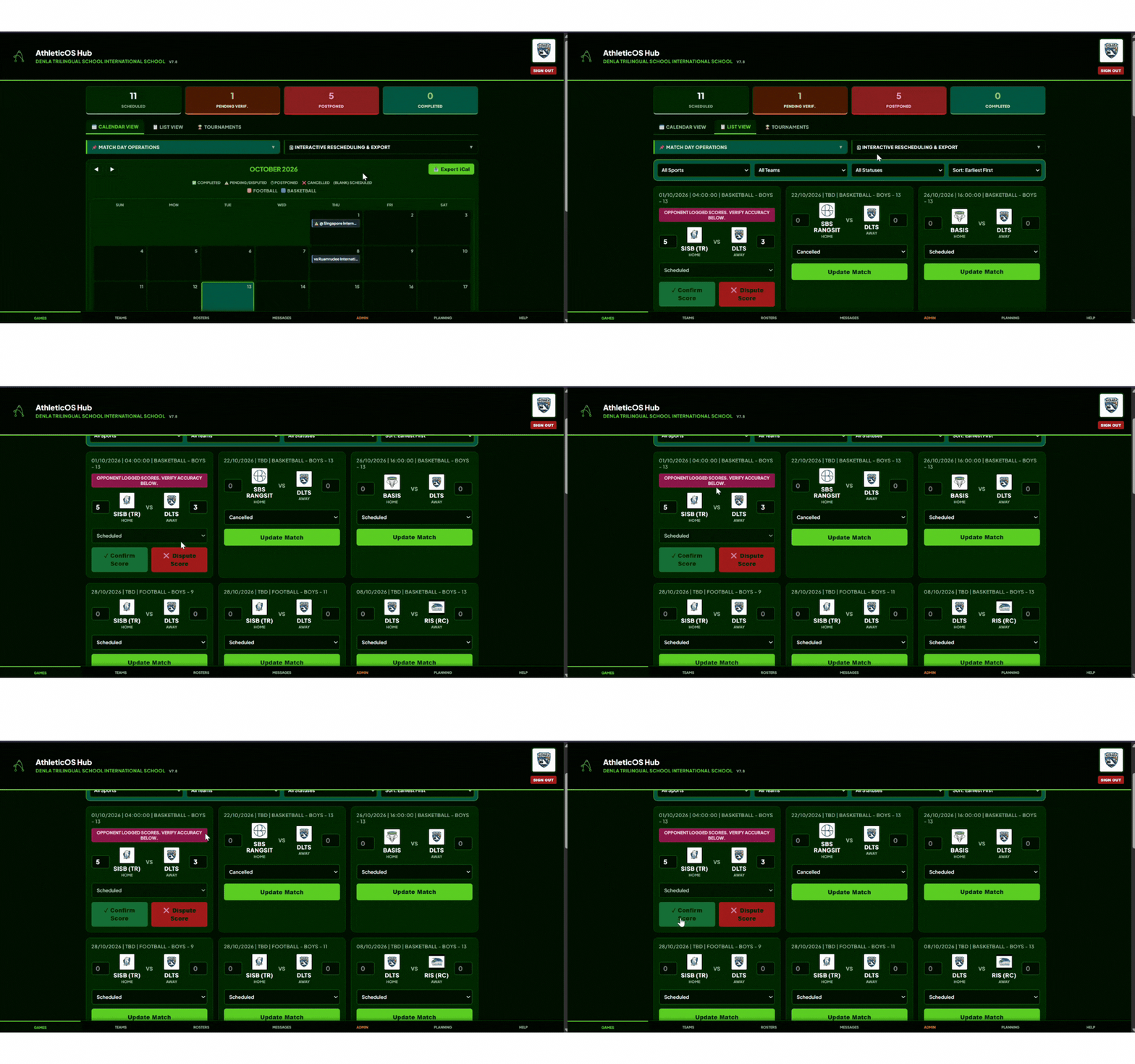
Notification Banner: When you log into the portal as an opposing team after a score has been submitted, the match card will display a prominent prompt: OPPONENT LOGGED SCORES. VERIFY ACCURACY BELOW. Carefully review the posted scores for both Home and Away sides.
How To Click Confirm (Verify) Or Dispute (Flag)
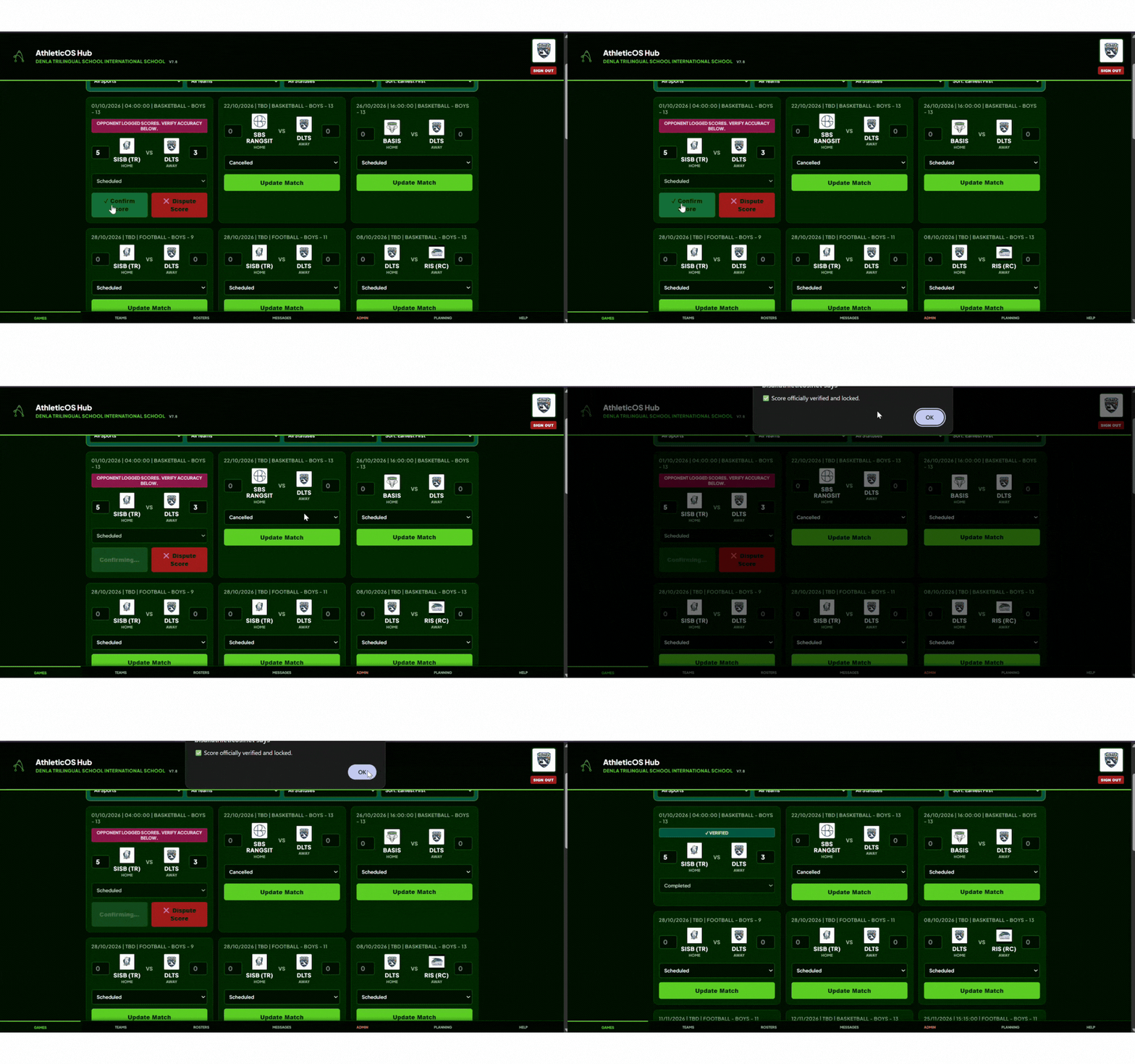
Action A: Confirm Score (Verified)
- If the logged scores are accurate, click the green Confirm Score button.
- The match status updates to VERIFIED / Completed and the ledger locks permanently.
- Official league standings, team records, and public site results update automatically.
Action B: Dispute Score (Admin Flag)
- If the logged score is incorrect, click the red Dispute Score button.
- The match will immediately flag as DISPUTED and halt public publication.
- An automated alert is routed to League Administration to investigate and resolve the conflict.
⚠️ Cautionary Notes & Efficiency Tips
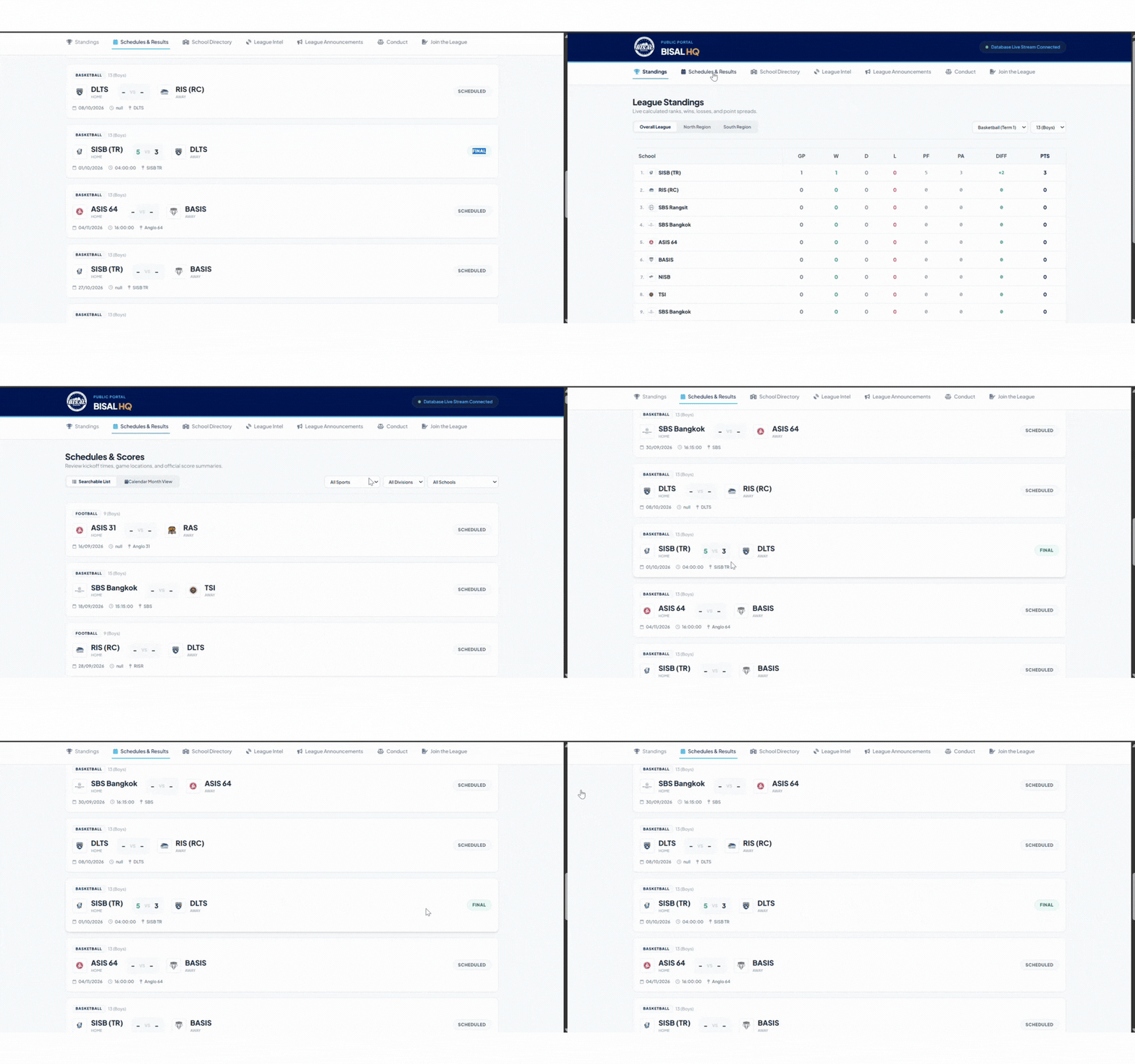
- Do Not Assume Finality: A game is not finalized after a single team submits the score; both teams must complete the verification loop in order for results to show publicly.
- Prompt Sign-Offs: Coaches are encouraged to review and confirm scores on matchday to ensure standings remain up to date.
- Double-Check Before Submitting: Verify numbers carefully before clicking Update to minimize disputes and administrative overhead.
🔗 Important Links
For accessing various resources associated with the AthleticOS League Management Ecosystem.
AthleticOS Support Team & Resources
- ✉️ Email: support@athleticos.net - For Basic Support Questions, Password Recovery, etc.
- 🗓️ Calendar: On-boarding Calendar - For Facility Mapping, Password Recovery, Personal Tutorials, etc.
- 🏪 Members Area: Courses & Tutorials (Coming Soon!)